How to Convert QBO to CSV and Review Bank Transactions
To convert a QBO bank export to CSV, open a converter that understands its OFX transaction structure, choose your file, review the account and transaction fields, then download the resulting table. The free QBO to CSV converter on TimeToTime Tools does this in your browser, with an explicit review step before download.
Try it free: Free QBO to CSV Converter Free to use, no account needed.
What is a QBO file?
A .qbo file is a QuickBooks Web Connect export of bank transactions. The name can be confusing: in this context, QBO is a file extension, not a request to connect to a QuickBooks Online account. Intuit describes downloading these files from a financial institution and importing them through Web Connect. See Intuit's Web Connect explanation.
The file stores tagged records rather than spreadsheet rows. A transaction can include a posted date, signed amount, payee, memo and an identifier assigned by the financial institution. OFX, the underlying exchange standard, is maintained by the Financial Data Exchange OFX Work Group.
A QBO export is different from a .qbw QuickBooks company database, a statement PDF or a CSV already downloaded from your bank. This converter handles supported QBO and OFX bank exports; it does not open company databases or extract transactions from PDFs.
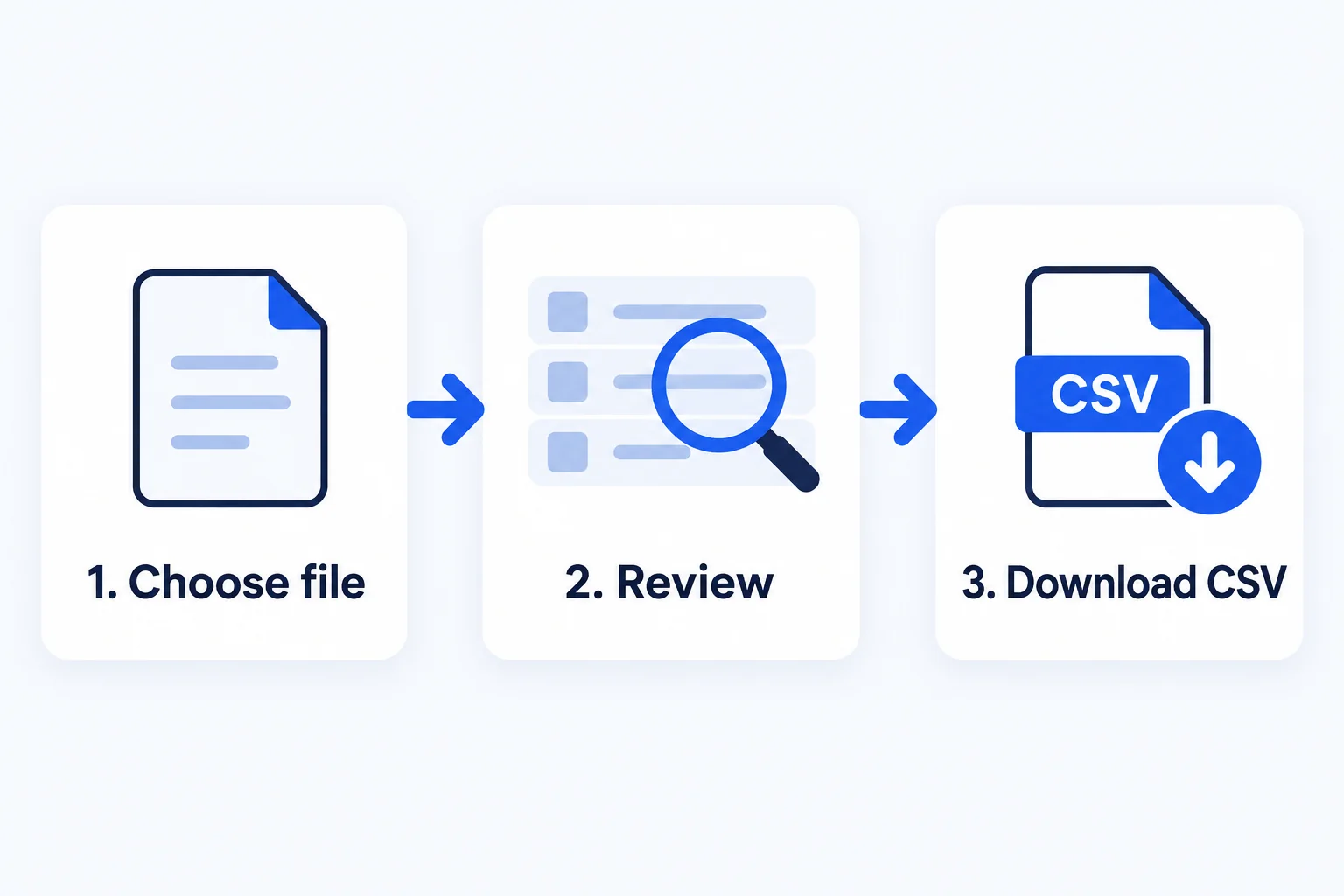
Convert your QBO file in three steps
1. Choose a bank export
Open the QBO to CSV converter and select Browse files. Choose one .qbo or .ofx file. The filename, size and selection status appear beside the picker. Nothing has been converted until you select Read transactions. You can also use Try an example to explore a fictional statement without a personal file.
The current limits are 10 MiB per file, 10,000 transactions and 50 account sections. If your file exceeds a limit, export a shorter date range from your bank. Local reading stops after 15 seconds; there is a cancel action for a pending read.
2. Review the account and rows
Choose the account section you want to export. Compare dates, names and signed amounts with your source statement. A negative amount remains negative; the converter does not reverse signs based on the transaction type. Its displayed date uses the calendar day written in the source, without translating that day to your computer's timezone.
Missing or invalid required fields block that account's download. Repeated transaction IDs are flagged but retained, because automatically deleting a row could remove something you need. Check overlapping exports and your destination's duplicate-handling rules before importing transactions anywhere.
3. Download the selected account
Select Download this account after reviewing the preview. Each account section produces its own CSV; the converter does not combine currencies or accounts. The filename uses a section number, and account IDs are omitted from the CSV. Account numbers are masked in the selector.
The export is UTF-8 CSV with a byte-order mark. It is a general transaction table, so an accounting application's import screen may still require column mapping or a different template. A successful download does not mean a bank feed or ledger has been updated.
Which fields are included?
| CSV column | Meaning and handling |
|---|---|
| Date | Calendar date from the posted-date field, written as YYYY-MM-DD |
| Amount | Source signed decimal string; no rounding or sign reversal |
| Currency | The statement's default currency |
| Type | Source transaction type |
| Name | Available payee or transaction name |
| Memo | Source memo text, with CSV quotes and line breaks escaped |
| Transaction ID | Source FITID value; useful when checking repeated entries |
| Check number | Source check number when present |
| Original posted date | Source date/time text, including a timezone suffix if present |
Balances, account numbers, bank identifiers and other OFX fields are not part of this table. Keep your original export if you need those details. This is a supported-field conversion, not a complete archive of everything in an OFX document.
Preserve leading zeros and long IDs in Excel or another spreadsheet
CSV stores text without a column-type schema. A spreadsheet may interpret 000001 as the number 1, turn an identifier into scientific notation or reinterpret a date when you open it. Those changes can happen even when the CSV contains the original characters.
Use your spreadsheet's text/CSV import workflow and set Transaction ID and Check number to Text before completing the import. Check the amount column's decimal separator and the date interpretation in the preview. For an initial inspection, you can also open the file in CSV Viewer or a text editor.
The converter's Protect formula-like text in spreadsheets option is on by default. It prefixes an apostrophe to text that starts like a spreadsheet formula, while leaving validated amount strings numeric. This changes the affected text values intentionally. Disable it only when your text-aware destination requires the original values and you understand how it will interpret them. This option does not force spreadsheet column types or prevent every automatic formatting change.
Common QBO-to-CSV problems
Renaming the extension does not work
Changing statement.qbo to statement.csv changes the filename, not the tagged records inside it. A converter has to read the fields and write actual CSV rows. Keep the original extension when selecting the file.
The file is selected, but there is no download
Select Read transactions to prepare the preview. If the reader reports an incomplete document, unsupported encoding or invalid fields, export a fresh statement from the bank and try again. The tool supports UTF-8, ASCII and Windows-1252 within its documented subset. It does not repair damaged files or silently skip bad transactions.
An account has no transactions
An export can include an account section without posted transaction rows. There is nothing to download from that section. Check the selected account and export date range; do not interpret an empty result as proof that the account has never had activity.
The export contains unsupported data
This version supports posted bank and credit-card transactions in legacy OFX SGML or XML. It rejects investment and loan statements, pending entries, correction instructions and transaction-specific currency extensions. Files using unsupported markup or text encodings also need another workflow. These limits avoid presenting a partial interpretation as a complete conversion.
Are bank files uploaded?
This converter reads the selected file in a browser worker. It does not send file contents to an upload service, store them in browser storage or include transactions in tool analytics. Clear the file or leave the tool to release its in-memory result. Keep downloaded CSVs according to your own file-handling needs. Ads and other site services can make separate network requests, so local conversion does not mean the entire website is offline.
Frequently asked questions
Can I convert QBO to CSV online for free?
Yes. The TimeToTime converter requires no signup and performs supported conversions in your browser. File and format limits are stated above the picker and in the tool's help text.
Does it connect to QuickBooks Online?
No. You select an existing bank export and download a CSV. The tool does not ask for bank credentials or access an accounting account.
Will the result import into every accounting app?
No. Each destination may require different columns, date formats or amount conventions. Follow its current import instructions and review the mapped transactions before submitting them. This tool does not validate application-specific imports.
Can I convert CSV back to QBO here?
No. Reverse conversion requires a different workflow and is not included in this tool.
Ready to inspect an export? Open the QBO to CSV converter or try its fictional sample first.
About this guide
This guide accompanies TimeToTime Tools' converter and describes its supported workflow and limits. The article and conceptual illustrations were created with AI assistance. The illustrations are not product screenshots or real bank statements. Format references: FDX OFX Banking Specification 2.3 and Intuit Web Connect.
Try it free: Free QBO to CSV Converter Free to use, no account needed.